Instagram Reels Safe Zone Dimensions 2026 (1080×1920): Pixel Margins + the 4:5 Feed Crop
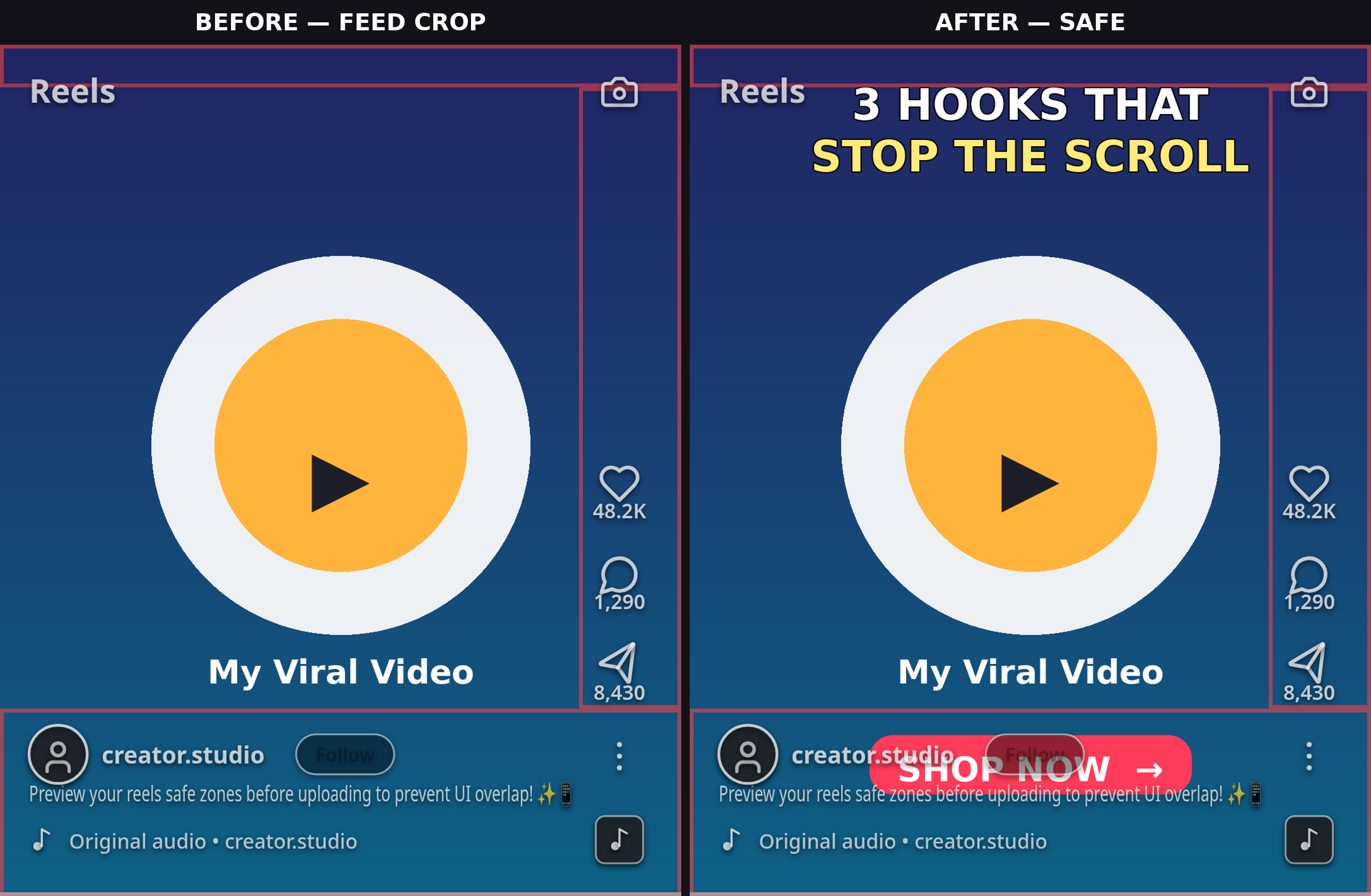
Reels have a double problem. First, Instagram draws its own interface — username, caption, audio label, and the like/comment/share rail — directly on top of your video, exactly like TikTok does. Second, and this is the part most guides skip, your Reel doesn't even show as full 9:16 everywhere: in the home feed it gets cropped to 4:5, and on your profile grid it shows as 3:4. A layout that's perfectly safe in the full-screen Reels viewer can still lose its top and bottom in the feed.
This guide gives you the 2026 Instagram Reels safe zone dimensions for a standard 1080×1920 (9:16) video: the pixel margins to keep clear, exactly how the 4:5 feed crop and 3:4 grid crop cut your frame, where to place text and faces so they survive all three surfaces, and how the safe zone differs for Reels ads.
Quick check: if you'd rather verify than measure, run your frame through ReelGuard's free Reels safe zone checker — select Instagram Reels and it overlays the UI zones, the 4:5 feed crop, and the grid crop on your footage in your browser. Nothing is uploaded; everything runs locally.
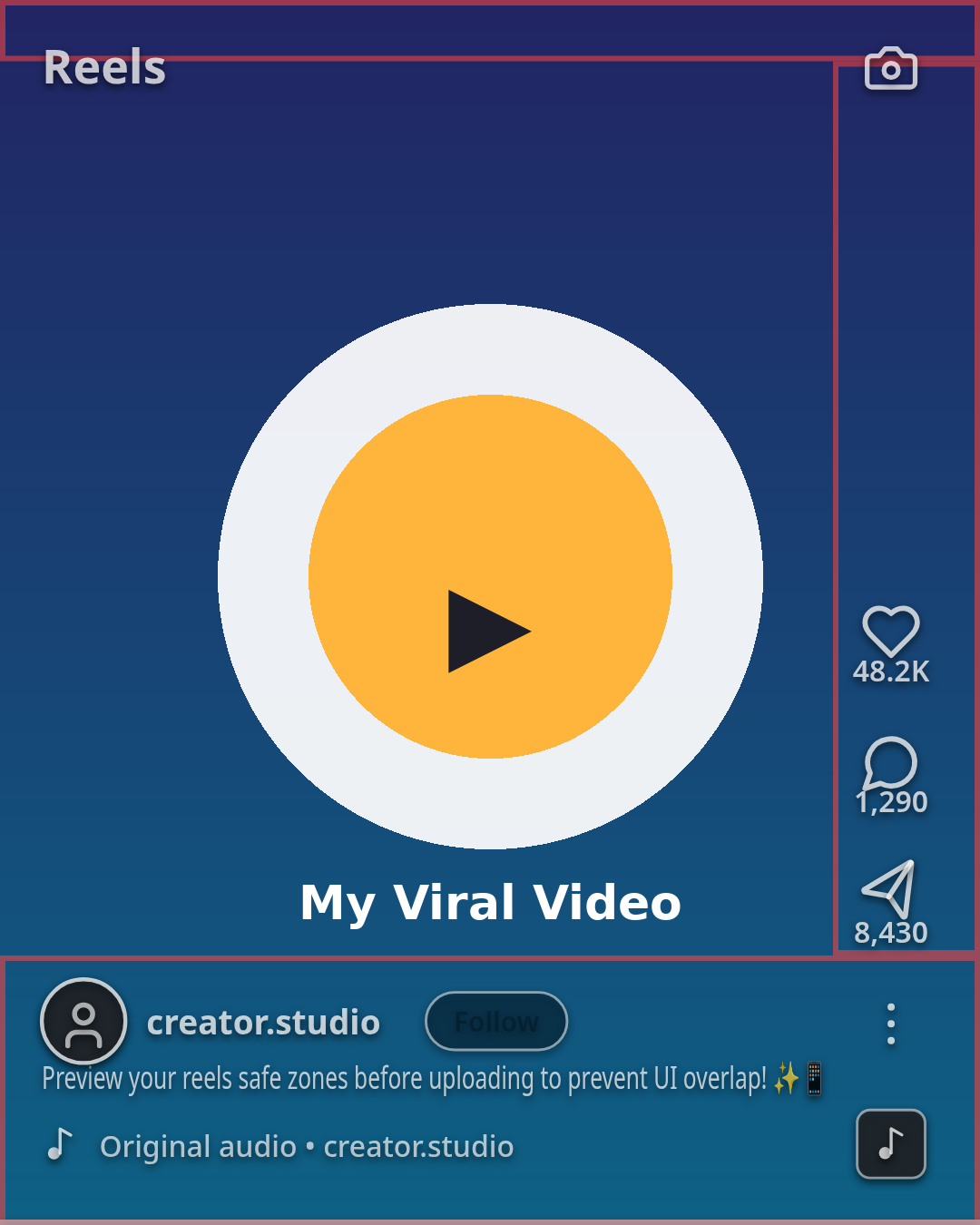
The Reels Safe Zone in 2026: Pixel Margins at a Glance
On a 1080×1920 px Reel, keep critical content — text, faces, logos, CTAs — clear of these zones:
| Edge | Conservative (Meta's published spec) | Practical organic (short caption) | What covers it |
|---|---|---|---|
| Top | ~270 px (14%) | ~220–250 px | Username header, audio/mute icon, phone notch |
| Bottom | ~670 px (35%) | ~280–350 px | Caption (grows with length), audio label, follow button |
| Left | ~65 px (6%) | ~60 px | Small buffer — caption overflow on long captions |
| Right | ~65 px (6%); ~227 px in the bottom-right corner | ~140–160 px | Like, Comment, Share, Save rail + spinning disc |
Resulting safe area (conservative): roughly 950 × 980 px, centered in the frame. Resulting safe area (practical organic): roughly 950 × 1320 px, in the upper-middle of the frame.
Why two columns? Meta publishes official numbers — 14% top, 35% bottom, 6% each side — but only for ads (Meta Ads Guide, still current in 2026). The organic Reels interface is the same UI, so every serious guide treats the ad spec as the safe spec: design to it and you survive everything. In practice, an organic Reel with a short caption covers less — about 220–250 px top and 280–350 px bottom. Use the conservative column when the Reel matters (launch posts, promos); the practical column is fine for everyday posts.
Sources: Meta's 14/35/6 percentages converted to pixels at 1080×1920; cadenus.io's trace of Meta's official safe zone file (270 top / 672 bottom / 64 sides, 227 px bottom-right corner clearance), checked July 2026; reelsafezone.com's organic measurements (220 top / 280 bottom / 160 right). Ranges, not fake precision — Instagram's UI shifts slightly between app versions.
The 4:5 Feed Crop: The Part Everyone Forgets
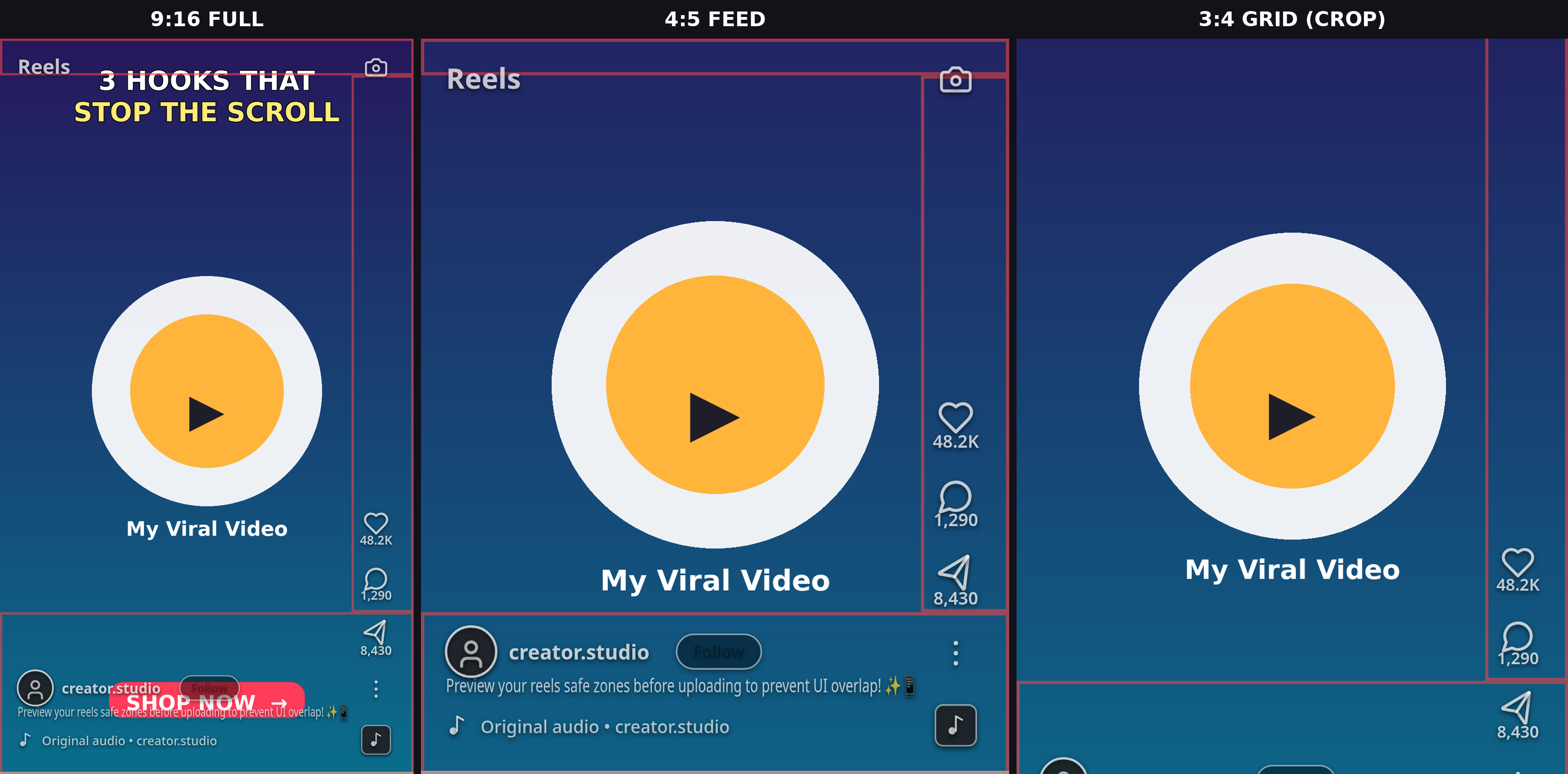
Here's the trap: most of your Reel's views don't happen in the full-screen Reels viewer. They happen in the home feed, where Instagram shows your Reel as 4:5 — 1080×1350 px — a centered crop of your 1080×1920 frame. That crop throws away 285 px from the top and 285 px from the bottom. Text sitting at Y 100 or Y 1750 exists in your file but never appears in the feed.
And it gets worse on your profile: the grid now shows Reels thumbnails at 3:4 — 1080×1440 px, centered — losing 240 px top and bottom (it used to be 1:1; Instagram changed it).
The math for one design that survives all three surfaces:
| Surface | Shows | You lose (vs 1080×1920) |
|---|---|---|
| Reels viewer (full) | 1080×1920 (9:16) | Nothing |
| Home feed | 1080×1350 (4:5), centered | 285 px top + 285 px bottom |
| Profile grid | 1080×1440 (3:4), centered | 240 px top + 240 px bottom |
Combine the feed crop with the UI margins and you get the feed-safe box: X 65–1015, Y 285–1248 (using the conservative spec). In plain terms: in the feed, keep must-see content in roughly the top two-thirds of the 4:5 window. Anything in the bottom third of the feed window is either cropped (below Y 1248 in the full frame) or sitting under the caption bar.
Where to Put Text, Faces, and CTAs on Reels
Hook text goes in the upper-middle band, roughly Y 300–700 on the full frame — below the username header, inside the feed crop, and clear of the button rail. This is the only band visible on all three surfaces.
Burned-in subtitles should sit between 40–50% of frame height (Y ~770–960), each line ending before X ~920 so lines clear the right-hand rail. Never let the lowest line drop below Y ~1250 — in the feed it will be cropped or captioned over.
Faces and key product shots belong center or center-left. Never the bottom-right corner — that's the most crowded part of the screen on Reels (button rail above, caption and audio label below, and the rail's clearance zone extends to ~227 px from the right edge there).
CTAs ("follow for part 2", promo codes) go center or center-left, inside the feed-safe box. A CTA at the bottom of the full frame is invisible in the feed — it gets cropped and captioned over.
Reels covers: upload at 1080×1920 but design the cover's key text inside the center 1080×1440 (3:4) — that's what the grid shows.
Organic vs. Reels Ads Safe Zone
The conservative column above is the ad spec — Meta's 14/35/6 guidance is written for advertisers. If you ever boost a Reel, the ad layer adds a CTA button and "Sponsored" label that stack into the already-heavy bottom zone. Good news: if you designed to the conservative margins for organic, your creative is already ad-safe. That's the whole point of designing to the spec instead of the practical minimum.
5 Mistakes That Get Reels Text Covered
- Designing only for the full 9:16 view. Your hook looks perfect in the Reels viewer and gets cropped out of the feed's 4:5 window.
- Text in the bottom third. Caption + audio label + follow button cover it — on Reels the bottom zone is the heaviest of any platform.
- Anything in the bottom-right corner. The button rail's clearance zone extends ~227 px from the right edge down there. Nothing survives it.
- Centering text for the grid. The profile grid is 3:4 now, not square — old 1:1 cover templates clip the top and bottom.
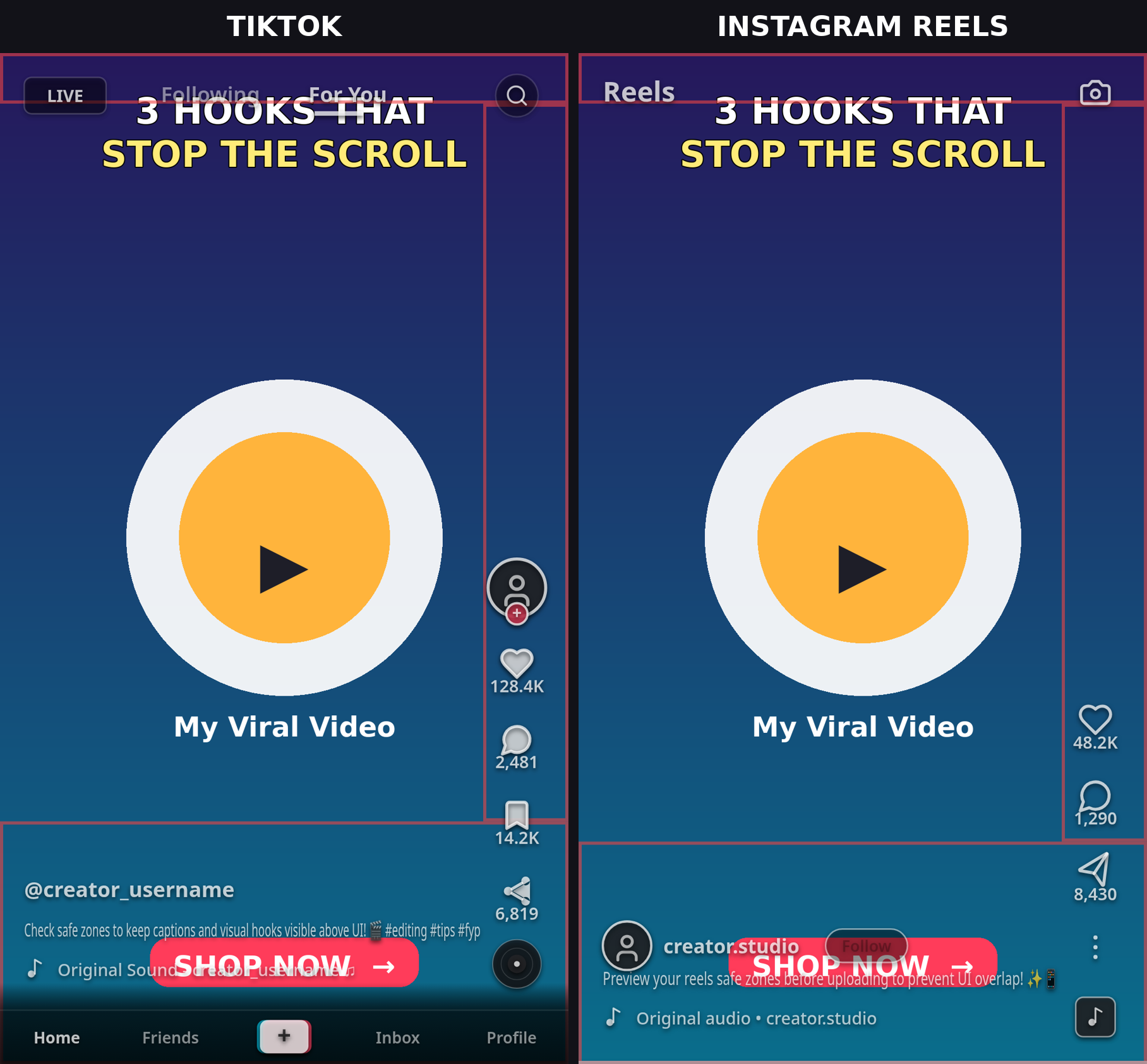
- Assuming Reels = TikTok safe zone. Reels reserves more top space (270 vs ~140 px) and more bottom space than TikTok. A TikTok-safe layout can fail on Reels.
How to Check Your Reel in 30 Seconds (Free)
- Open ReelGuard and select Instagram Reels.
- Drop in a frame of your video or a thumbnail.
- Toggle the 4:5 feed crop and 3:4 grid crop overlays — if any text, face, or logo falls in a shaded zone or outside a crop, move it and check again. Repeat for TikTok and Shorts if you crosspost.
The whole thing runs in your browser — your footage never uploads anywhere.
What About TikTok and Shorts?
A Reel-safe layout is not automatically safe on TikTok or YouTube Shorts — each platform's UI sits in different places. TikTok's top margin is smaller but its caption zone behaves differently; Shorts has wider top/bottom margins for titles and the subscribe button. If you crosspost, check all three — ReelGuard's platform toggle shows each one side by side. (Detailed guides: TikTok safe zone dimensions 2026 · YouTube Shorts safe zone dimensions 2026 — publish this next.)
FAQ
What are the Instagram Reels safe zone dimensions in 2026? On a 1080×1920 Reel, Meta's published spec keeps ~270 px (14%) clear at the top, ~670 px (35%) at the bottom, and ~65 px (6%) on each side — a ~950×980 px safe area. For everyday organic posts with short captions, ~220–250 px top and ~280–350 px bottom is enough in practice.
What is the 4:5 feed crop on Reels? In the home feed, Instagram shows your Reel as 4:5 (1080×1350 px) — a centered crop that cuts 285 px off the top and 285 px off the bottom of your 1080×1920 frame. Keep must-see content inside the center 1080×1350 band.
Where should text go on Instagram Reels? Hook text in the upper-middle band (Y 300–700); burned-in subtitles at 40–50% frame height, ending before X ~920; CTAs center or center-left inside the feed-safe box. Never the bottom-right corner.
Is the Reels safe zone different for ads? The published 14/35/6 spec is the ad spec — Meta wrote it for advertisers. Design to it and your organic Reel is automatically ad-safe when you boost it.
How can I check my Reels safe zone for free? Use ReelGuard's free safe zone checker: select Instagram Reels, drop in a frame, and toggle the UI-zone, 4:5 feed-crop, and 3:4 grid-crop overlays. It runs entirely in your browser — nothing uploads.