Why Is My Text Cut Off on TikTok? Fix It in 2 Minutes
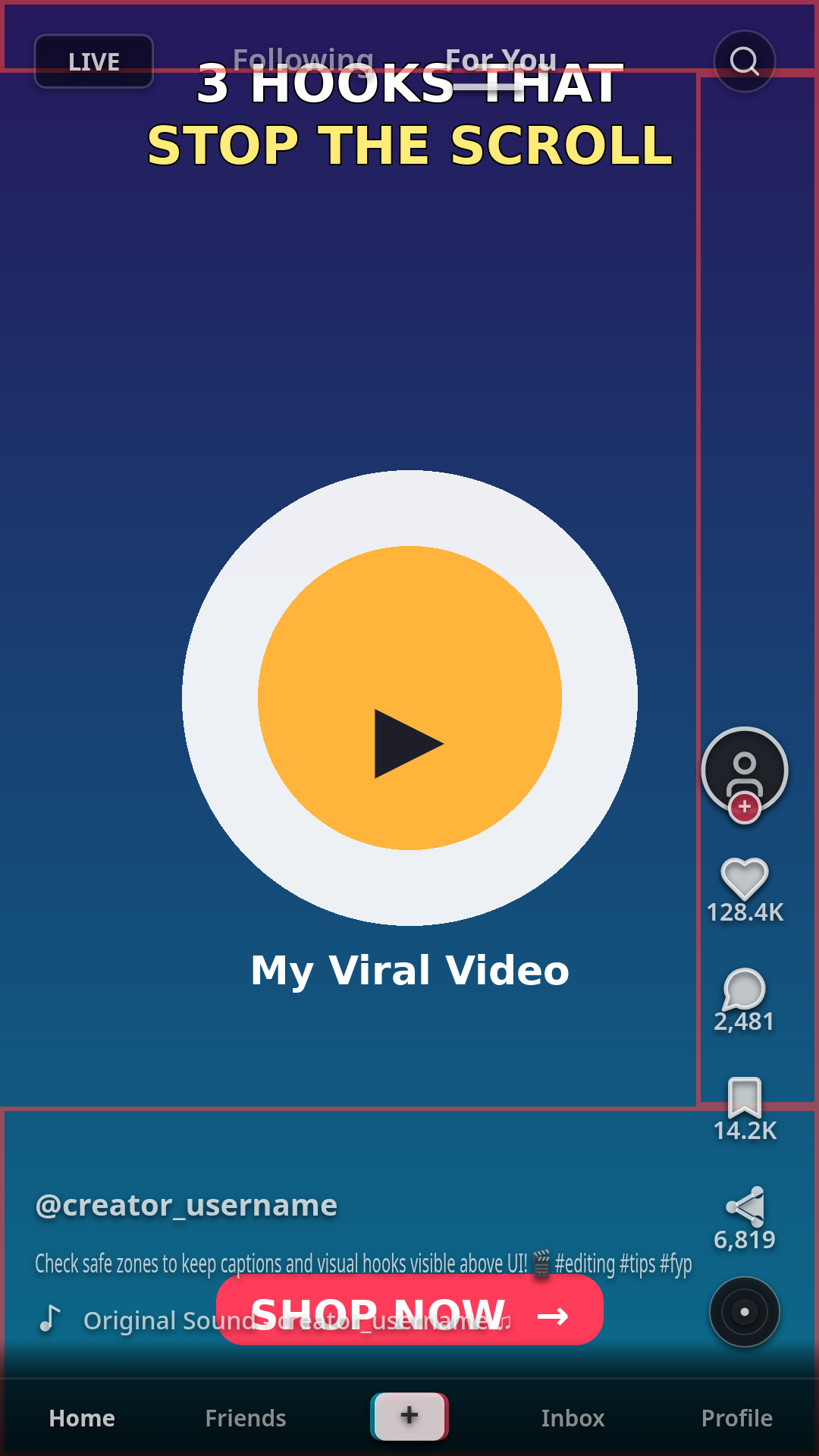
You spend hours filming, editing, and timing on-screen hooks, only to hit publish on TikTok and discover that your headline is buried behind the search icon or your call-to-action is unreadable under the username and caption block.
This happens because video editing software presents an unobstructed 9:16 canvas, but TikTok draws an extensive interface directly over your video. Here is how to diagnose exactly what is covering your text and fix it in under two minutes.
Quick diagnostic: Drop your video frame into ReelGuard's free safe zone checker. It overlays TikTok's interactive UI zones directly onto your footage in your browser — private, free, and instant.
Diagnose It in 10 Seconds: Where Is Your Text Being Cut?
Look at where the obstruction occurs to identify which TikTok interface layer is causing it:
| Where It's Cut | Obstructing UI Elements | Danger Zone (1080×1920) |
|---|---|---|
| Top Edge | "Following" / "For You" tabs, search icon, LIVE button, device notch | Top 130–150 px |
| Bottom Third | Account handle, caption lines, hashtag "see more" link, sound title, follow button | Bottom 320–480 px |
| Right Side | Profile avatar (+ follow badge), like, comment, bookmark, share buttons, audio disc | Right 140–160 px |
| Left & Right Borders | Screen aspect ratio cropping (tall 19.5:9 or 20:9 smartphone displays) | Side margin ~50–60 px |
Why Your Editor Lies to You
Video editing apps like CapCut, Premiere Pro, DaVinci Resolve, and Final Cut Pro provide a clean 1080×1920 preview window. There are no like buttons, no animated sound discs, and no caption bars in the editing timeline.
As a result, creators naturally center text in the lower third or push titles toward the top header to balance the frame visually. But in the TikTok app, that lower third is completely occupied by user account metadata and engagement icons.
The 2-Minute Fix
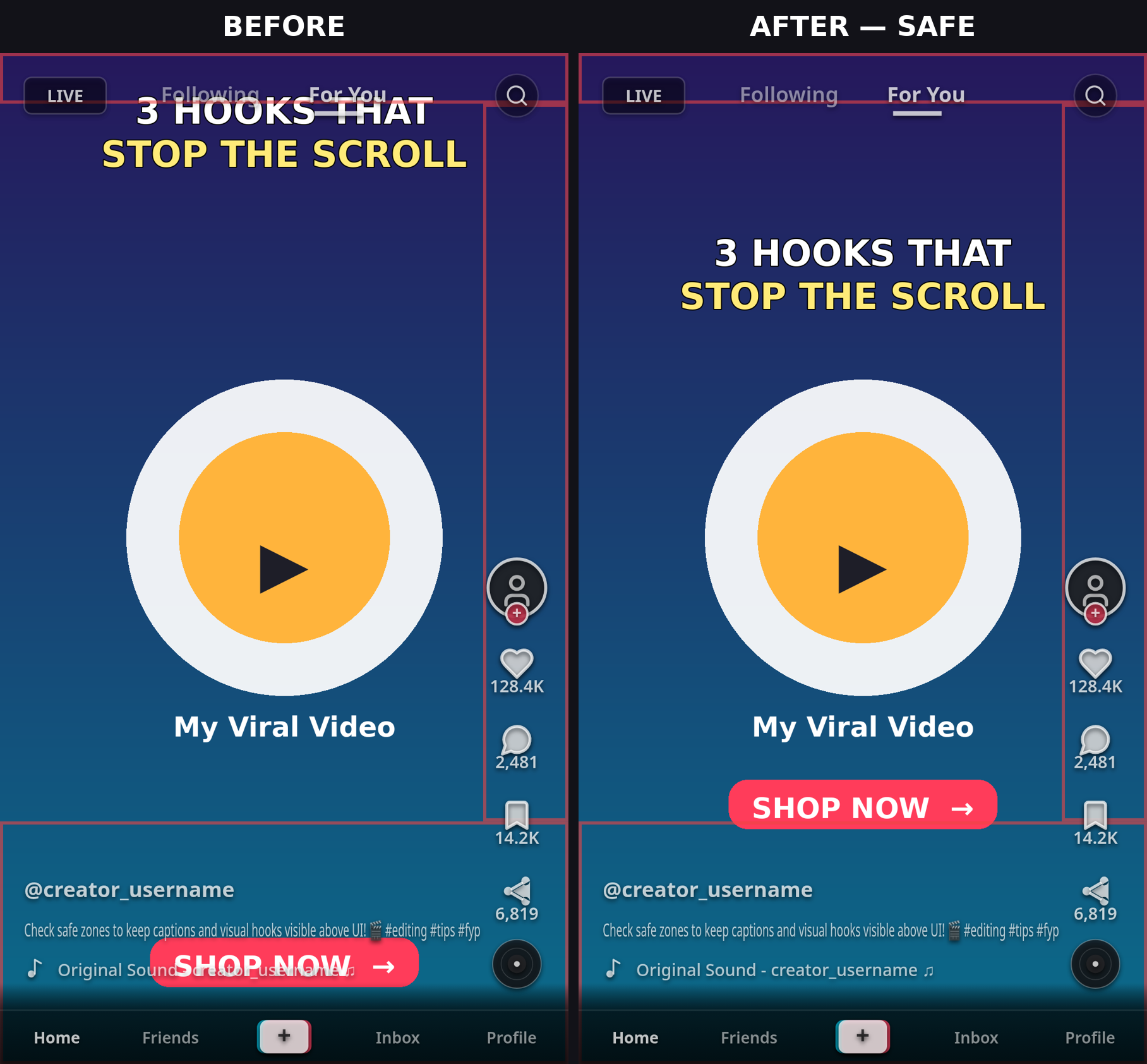
You don't need to re-shoot or redo your video. Follow this quick 2-minute reframing process:
- Reposition Hooks: Move opening headlines into the upper-middle band (Y 150–500 px). This guarantees they stay clear of the top search bar while remaining visible before viewers scroll.
- Nudge Burned-In Subtitles Up: Ensure the lowest line of subtitles finishes above Y 1700 (or above Y 1440 if captions are long).
- Shorten Subtitle Width: Break long subtitle phrases into 2–3 shorter lines ending before X 860 px so they don't collide with the right-side like and comment column.
- Re-Verify in ReelGuard: Drop your corrected frame into ReelGuard and confirm zero overlap with the shaded UI regions.
When It's NOT a Safe Zone Problem
Occasionally, text issues aren't caused by static UI overlap:
- Dynamic Caption Expansion: If your caption contains hashtags, mentions, or extended copy, TikTok adds a "...more" link. When a viewer taps this, the caption expands upwards and covers an additional 100–150 px.
- Phone Screen Aspect Ratios: Modern flagship smartphones (such as newer iPhones and Galaxy devices) use tall screens (19.5:9 or 20:9). TikTok zooms and crops slightly to fill the screen, cutting approximately 50 px off the left and right edges.
- Viewer UI Settings: Viewers using larger system font sizes or high-contrast accessibility modes will see enlarged UI buttons, further squeezing the visible safe area.
Does This Happen on Reels and Shorts Too?
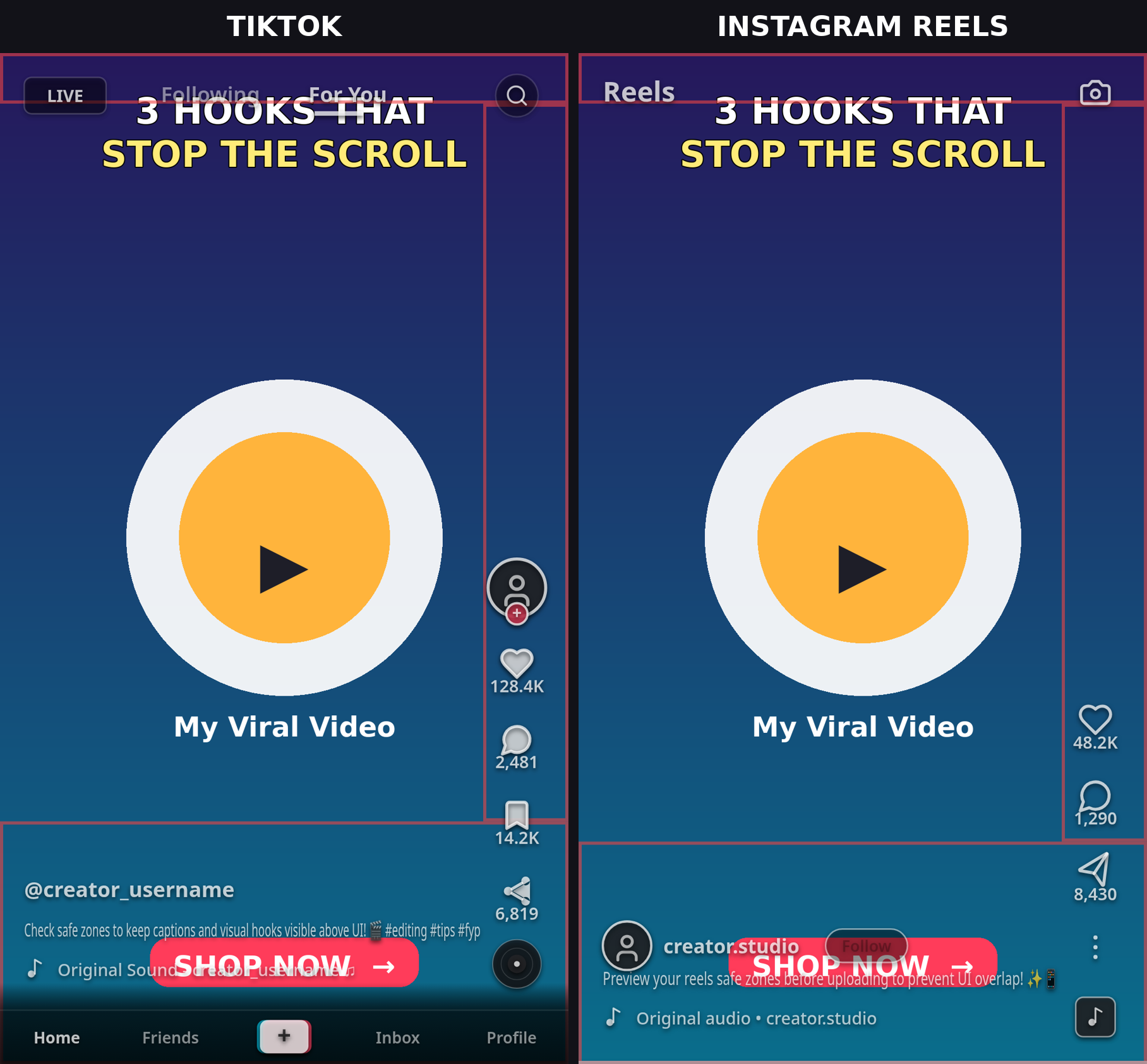
Yes — and often worse! A layout corrected for TikTok may still be clipped on Instagram Reels or YouTube Shorts:
- Instagram Reels: Has a significantly larger top obstruction (~270 px) and automatically crops your video to 4:5 in the home feed, cutting 285 px off the top and bottom. Check our Instagram Reels safe zone guide.
- YouTube Shorts: Features a prominent subscribe button in the bottom-right corner that obscures watermarks and CTAs. Read our YouTube Shorts safe zone dimensions guide.
- Unified Solution: To design a single layout that survives all three platforms without separate exports, read our One Design Safe Crosspost Guide.
FAQ
Why does TikTok cut off my captions?
TikTok layers its own interface (username, caption box, audio tag, and interaction buttons) over your video. Any text placed in the bottom 320–480 px or right 140–160 px will be obstructed.
What are the exact safe zone dimensions for TikTok in 2026?
On a 1080×1920 video, keep ~130–150 px clear at the top, ~320–480 px clear at the bottom, ~140–160 px clear on the right, and ~60 px on the left. The usable safe area is roughly 880 × 1310 px centered in the frame. See our full TikTok Safe Zone Dimensions guide.
Can I fix cut-off text on a TikTok video after uploading?
No. Once uploaded, a TikTok video cannot be edited. You must adjust your text in your video editor and re-upload the video. To avoid this, always check your frame with ReelGuard before publishing.
How do I check my video safe zones for free?
Open ReelGuard in your browser, select TikTok, and drop in a screenshot of your video. It will highlight the exact danger zones so you can fix text placement in seconds.