How to Add a Safe Zone Overlay in After Effects
You animate a headline in After Effects: it slides in from the right, settles in the centre, then a CTA pops up at the bottom. In the Composition panel it looks perfect at every frame. You render, the client uploads to TikTok — and the headline slides in from behind the like button, while the CTA sits under the caption block.
After Effects did not move your text. TikTok covered it. After Effects shows a clean composition; TikTok, Reels, and Shorts always draw their own interface on top of your video: tabs at the top, a rail of buttons down the right side, and a username and caption block across the bottom. And because your text moves, a single still-frame check is not enough — text that is safe at rest can pass through a danger zone while it animates.
A safe zone overlay fixes this before you render. It is a temporary reference image in your composition, showing exactly where those platform zones fall. Align your animated text inside the clear area at every keyframe, then render — with the overlay set as a guide layer, it cannot burn into your export even if you forget it.
Quick check: if you want to see the zones on your own frame first, run a screenshot through ReelGuard's free safe zone checker — it overlays the real TikTok, Reels, or Shorts UI on your design in your browser. Nothing is uploaded; everything runs locally.
Why the Composition Panel Cannot Be Trusted
The Composition panel is a clean preview — and that is the problem. It has no built-in platform overlay, so text near the edges looks safe when it is not. Its built-in title-safe and action-safe guides are broadcast conventions (title-safe is the inner 80% of the frame, action-safe the inner 90%), and they ignore TikTok's right rail, Reels' taller header, and Shorts' subscribe button. Worst of all for motion work, a static safe check misses movement: a lower third that ends in the safe area may still sweep across the right rail on its way in.
What You Need
- An After Effects composition at 1080×1920 (9:16), with your text and motion graphics layers in place.
- A reference frame: a still from your composition with your titles visible, or a Composition panel screenshot.
- A ReelGuard checked preview of that frame, saved as a PNG — the overlay you will place as a guide layer. A transparent safe zone PNG works the same way.
Generate the preview for the platform you are delivering to.
Step 1: Check Your Frame — and Your Animation Path — Before You Touch the Timeline
- Export a still frame from your composition, or screenshot the Composition panel with all titles visible.
- Open ReelGuard, drop in that frame, and turn on the overlay for the platform you will deliver to.
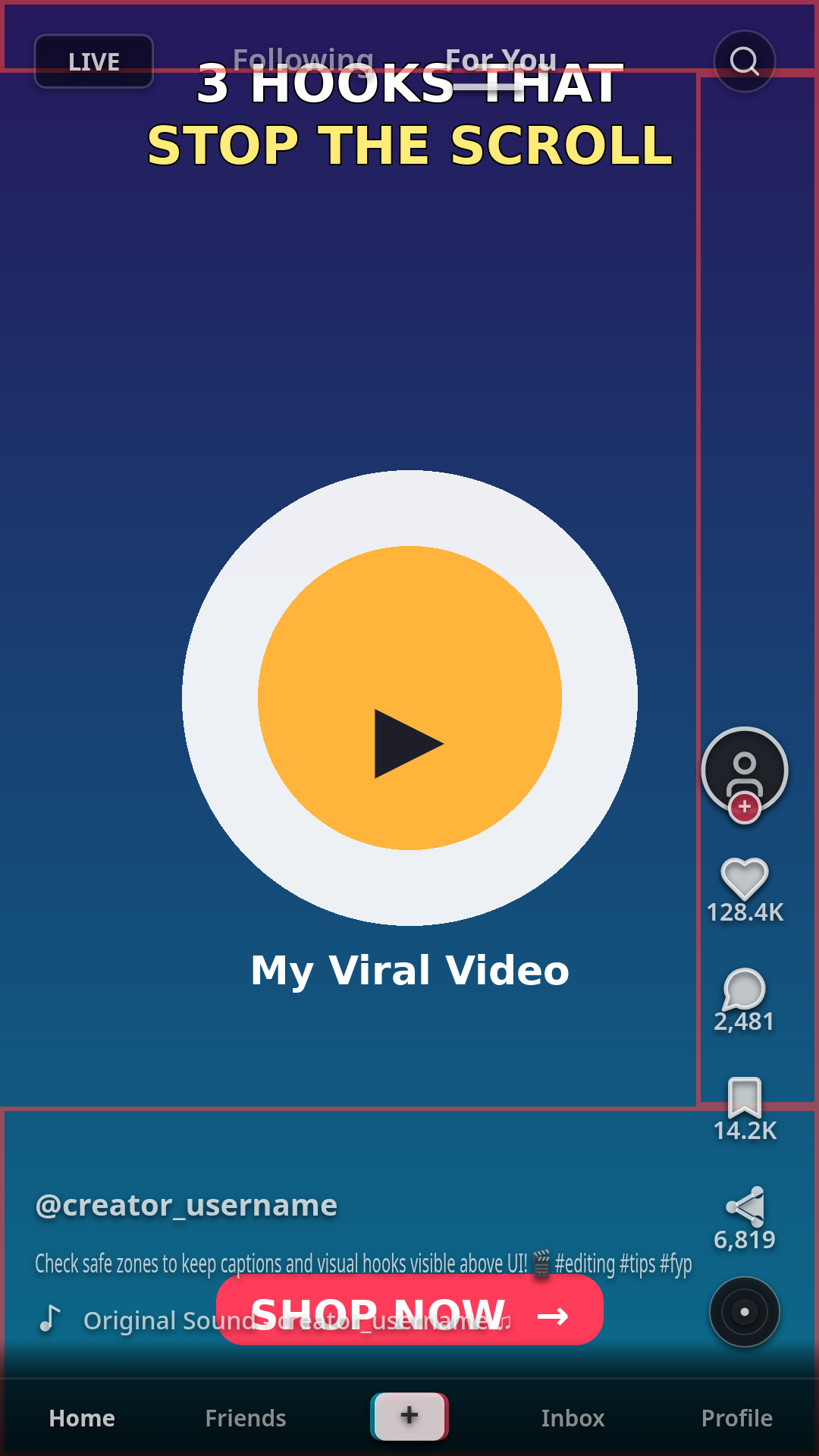
- Note what gets covered: headline under the top tabs? Lower thirds ending under the right rail? CTA under the caption block?
- Then check the animation path, not just the resting position. Scrub through the timeline and watch where each text layer travels — in, out, and between keyframes. A slide-in from the right or a scale-up from the bottom can cross a danger zone even when its final position is safe.
On a TikTok 1080×1920 frame: top ~140 px, right ~140–160 px strip, bottom ~300–350 px. Keep must-read text out of all three at every point in its animation, and leave extra room at the bottom for a long caption.
Step 2: Add the Overlay as a Guide Layer in After Effects
- Import the ReelGuard checked preview PNG (File → Import, or drag it into the Project panel).
- Drag it into your composition and move it to the top of the layer stack, above every text and graphics layer.
- With the overlay layer selected, choose Layer → Guide Layer. A guide layer is visible while you work but does not render — this is the safest overlay method in After Effects, because even if you forget it, it cannot burn into your export.
- Stretch the overlay layer across the entire composition duration. If it only covers the opening, later scenes and later keyframes go unchecked.
- Scale and position the overlay to fill the entire 9:16 frame, edge to edge, with no distortion. If it is smaller than the frame, the zones sit in the wrong place.
- If the overlay is hard to see, lower its opacity to around 50% while you work, and lock the layer so you do not accidentally move or animate it.
Step 3: Align Your Animated Text Inside the Safe Area
With the guide layer visible, fix each element — at every keyframe, not just the last one:
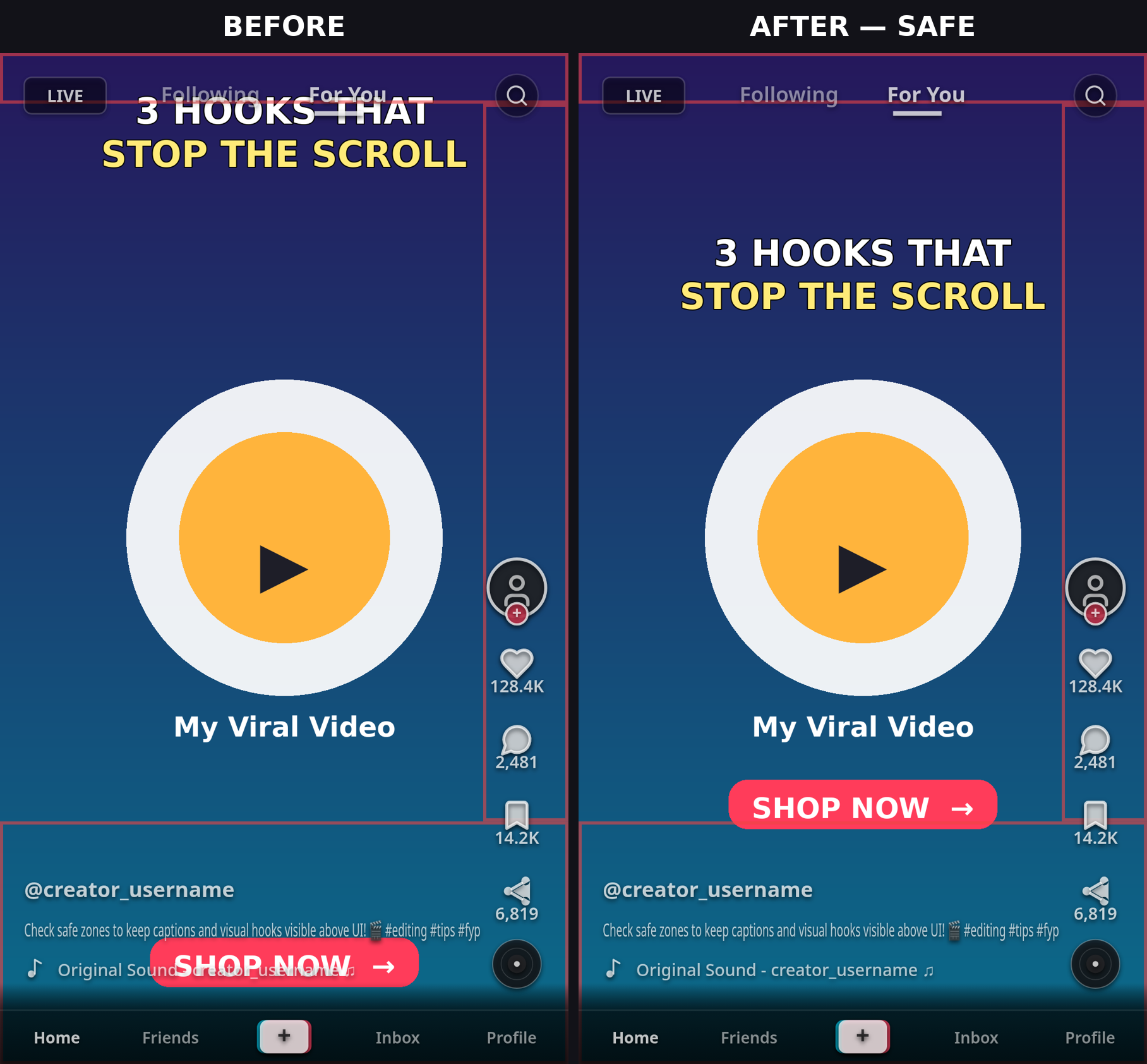
- Headlines and hooks: pull them below the top tabs and, for Reels, below its taller header — including the first and last frames of any slide, fade, or scale animation.
- Lower thirds and animated captions: end every line before the right rail, and check the path the text takes to get there.
- CTAs, promo codes, and prices: lift them above the caption zone — higher still for a long caption.
- Logos and watermarks: keep them out of the right rail and the bottom caption area for the whole time they are on screen.
- Check every scene, not just the first. Scrub through the whole composition with the guide layer on, and preview the full animation at least once.
Title-Safe and Action-Safe: Use Them With the Overlay, Not Instead of It
After Effects can show title-safe and action-safe guides from the Grid and Guide Options in the Composition panel, and they are worth turning on as a rough grid. But they are broadcast margins — roughly the inner 80% and 90% of the frame — not platform zones. They do not know about TikTok's right rail, Reels' taller header, or Shorts' subscribe button. If a title sits inside title-safe but still crosses the overlay's right rail, the overlay wins.
Step 4: Render Clean
Because the overlay is a guide layer, it will not render — but do the check anyway. Hide the guide layer, run a full RAM preview, and confirm no overlay is visible anywhere and no text crosses a danger zone mid-animation. Then render from the Render Queue as normal.
Crossposting? Check All Three, Not Just One
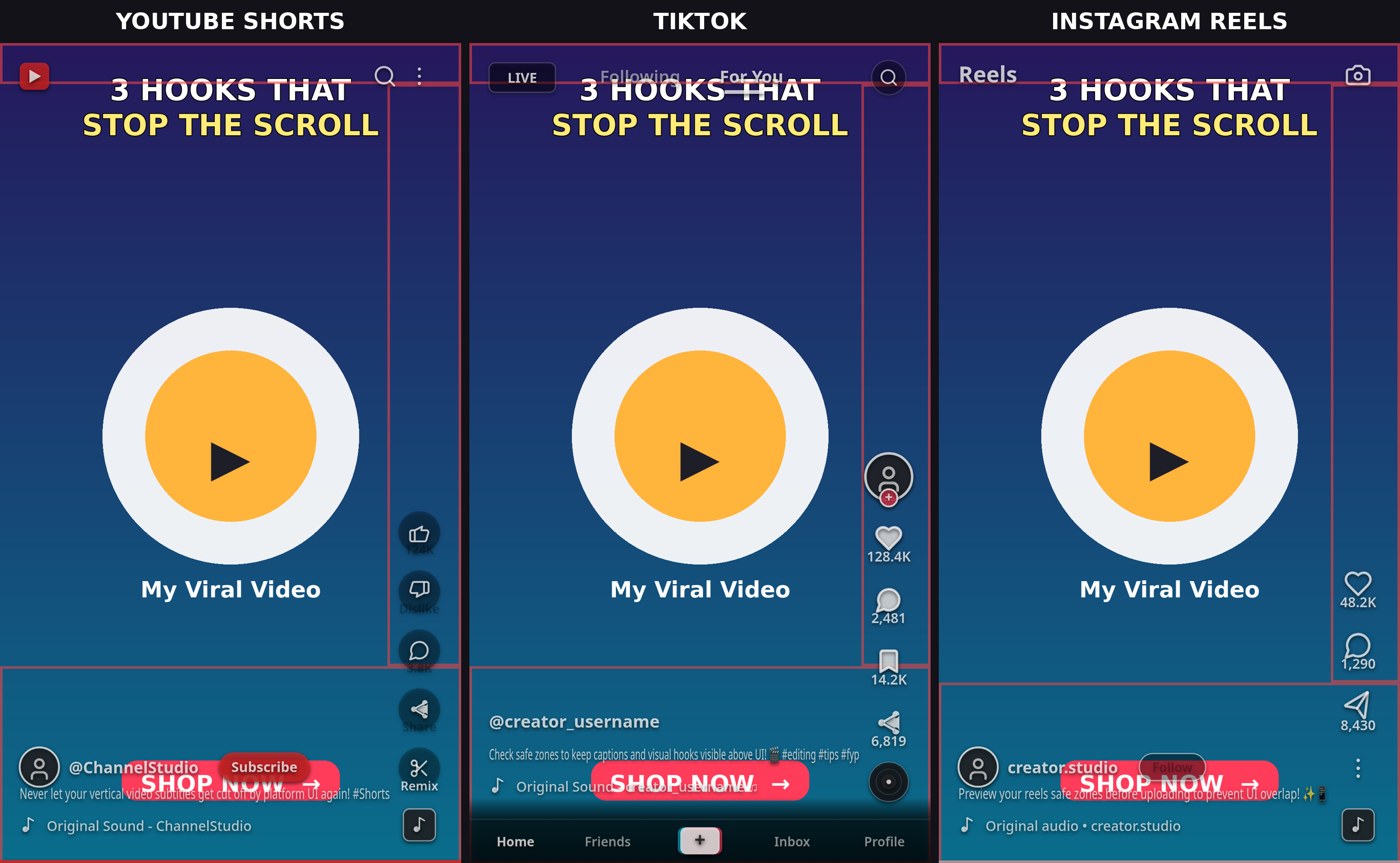
A TikTok-safe animation is not automatically Reels-safe or Shorts-safe. The zones move: Reels has a taller top header and a larger bottom margin, Shorts has a wider right rail and a subscribe button. If the same animation goes everywhere, repeat Step 1 per platform, or design to the tightest shared area.
For the full numbers, see our TikTok Safe Zone Dimensions 2026 guide, Instagram Reels Safe Zone Dimensions 2026 guide, and YouTube Shorts Safe Zone Dimensions 2026 guide — and our CapCut safe zone overlay guide for the same workflow on mobile.
Common Mistakes
- Checking only the resting position. Animated text crosses danger zones mid-move — check the whole path.
- Scaling the overlay to the wrong size. If it does not fill the 9:16 frame exactly, every zone is in the wrong place.
- Animating the overlay layer by accident. Lock it after placing it.
- Trusting title-safe margins alone. They are a broadcast grid, not a platform overlay.
- Fixing only TikTok, then crossposting blind. Reels and Shorts have different zones — check them too.
- Shrinking text instead of moving it. Text under ~60 px tall on a 1080×1920 frame is hard to read on a phone even inside the safe area.
Before-Render Checklist
- Overlay fills the full 9:16 frame, spans the full composition, and is set as a guide layer.
- Headlines clear of the top tabs at every keyframe; every title line ends before the right rail.
- CTAs sit above the caption zone, with extra room for long captions.
- Guide layer hidden and locked; one full preview with no overlay visible — then render.
FAQ
How do I add a safe zone overlay in After Effects? Import a reference image — a ReelGuard checked preview works well — place it at the top of the layer stack, and set it as a guide layer with Layer → Guide Layer. Stretch it across the full composition, scale it to fill the 9:16 frame, and lower its opacity to around 50% while you work. Align your text inside the clear area at every keyframe, then render.
Will a guide layer show up in my rendered video? No. Guide layers are visible while you work but do not render in After Effects, which makes this method safer than a normal overlay track. Still run one full preview before rendering to confirm.
Where do I get a safe zone overlay image for After Effects? Check a frame of your own video in ReelGuard's free checker and save the checked preview. That image shows the real platform zones on your design and works as a guide layer in After Effects.
Why does my text look fine in After Effects but get covered on TikTok? After Effects shows a clean composition with no platform UI. TikTok always shows your video with its tabs, right rail, and caption block on top — and animated text can cross those zones mid-move even when its final position is safe.
Are After Effects title-safe margins enough for TikTok and Reels? No. Title-safe (80%) and action-safe (90%) are broadcast conventions that ignore TikTok's right rail, Reels' taller header, and Shorts' subscribe button. Use them as a rough grid; the platform overlay is the real check.
Part of the ReelGuard safe zone series: TikTok Safe Zone Dimensions 2026 · Instagram Reels Safe Zone Dimensions 2026 · YouTube Shorts Safe Zone Dimensions 2026 · How to Add a Safe Zone Overlay in CapCut